MyBTX Account Manager
Once you have successfully registered with and logged into
MyBTX, you will see
the opening screen below.
From this screen you can access all of the features in MyBTX.
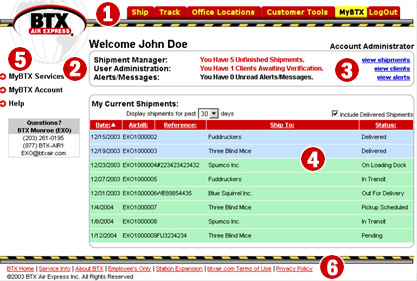
-
Top Navigation Tabs
–
You may access the following from these tabs:
-
Ship – Create shipments
-
Track – Track shipments
-
Office Locations – A list of all BTX Stations, with contact info
-
Customer Tools – Additional innovations coming soon
-
MyBTX – Your MyBTX opening screen
-
LogOut – End your current MyBTX session
-
Your MyBTX Status Snapshot –
A summary of your MyBTX account activity is found here.
-
Shipment Manager shows number of unfinished shipments
-
User Administration (Admins only) – Informs you of people in your company that
have registered with MyBTX and await your approval.
-
Alerts/Messages – Indicates the number of unread alerts and messages you have.
-
Status Snapshot Drilldown – A set of links
that lets you act upon the information appearing in the snapshot screen
-
View Shipments – Brings you to the Shipping Manager main screen, where you can
create shipments and shipment templates, finish incomplete shipments and manage
documents, i.e., labels, air waybills and shipment manifests.
-
Current Shipments – View the status of your current
shipments
-
Option to define the time period to view (in days).
-
Option to include Delivered Shipments
-
Shipment detail can be sorted by clicking on any of the column titles in the
table
-
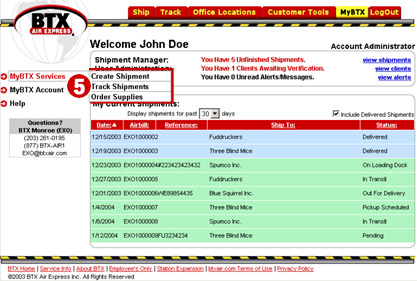
Side Navigation Pull-downs – Access to additional
MyBTX features.
-
MyBTX Services – Create shipments, Track shipments
and order supplies
-
MyBTX Account – Displays your account
information, default shipping preferences and allows you to edit same.
-
Help – Frequently Asked Questions (FAQ), online tutorial and a contact form for
more detailed inquiry. (see example below)
-
Bottom Navigation Links – Selected links to other features and
information contained at www.btxair.com
|
|



