A step-by-step guide to all the features of MyBTX
You may navigate this tutorial in two ways:
-
In order – Use the Next and Back buttons to advance through topics
-
By topic – Use the navigation at the top to jump to specific topics of interest
Navigation of MyBTX
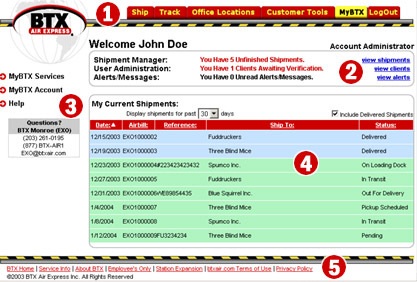
The navigation highlights of MyBTX are referenced
in the image and text below
-
Tabs – Tabs along the top (Ship, Track, Office Locations, Customer Tools,
MyBTX, and LogOut) allow you to navigate through
the main sections of the software
-
Welcome Screen Hyperlinks – Hyperlinks in the top frame of the Welcome
screen allow you to view shipments, clients or alerts with a single mouse click
-
Pull-down Menu – Three pull down menus on the left of the screen offer
the following options
-
MyBTX Services – Create shipments, Track
shipments and order Supplies
-
MyBTX Account – Displays your Customer information,
allows you to edit your login preferences, default shipper information and other
default shipping preferences
-
Current Shipments – Highlight and click any of your Current Shipments to
display detailed shipment information. This table can be sorted by
Date, Airbill, Reference, Ship to or Status by simply clicking the column name
-
Bottom Navigation – Navigate to other areas of the BTXAIR.COM site
-
Miscellaneous Navigation (see image below) – Throughout the various screens of
MyBTX, there are buttons which will permit
additional navigation, such as: Reset, Edit and Add New Entry (see figure
below)

|





