MyBTX Tracking Options
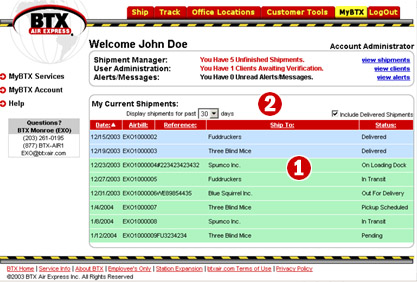
When you log in to MyBTX, all of your current shipments
are displayed:
-
Current Shipments – Clicking anywhere on the line
item produces more detailed tracking information (see figure below)
-
Options – You can specify a time period for your search by selecting from
the drop-down box. You may also choose to include Delivered shipments by
checking the checkbox
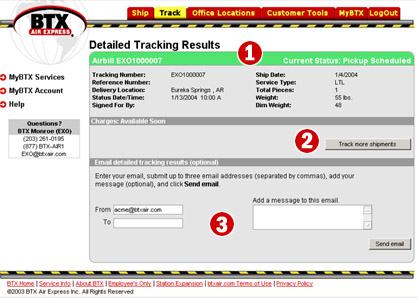 |
- Air Waybill Number & Status – Displays the current Air Waybill
number along with its date/time status, current status in the transportation pipeline.
Immediately below, a summary of the shipment details are displayed
-
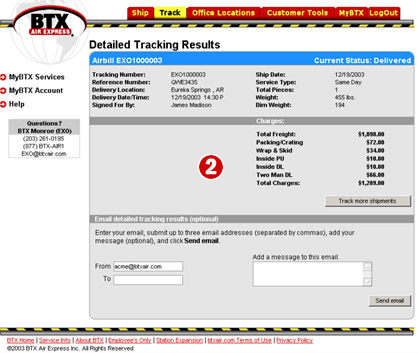
Track More Shipments – Brings you back to the main tracking screen. If
this shipment was a DELIVERED shipment, shipping charges would also be
displayed in this window, along with date/time delivered and signatory (see example below)
-
Email Detailed Tracking Results –
Permits you to email detailed tracking results (with charges, in the case
of delivered shipments) to anyone you like. You can even add an
additional message to the email.
 |
|





