MyBTX Online Shipment (Step 4)
Now that the shipper and consignee information has been
entered, service details and options are selected and shipment details have been
entered, it is time to review the shipment for final submission:
-
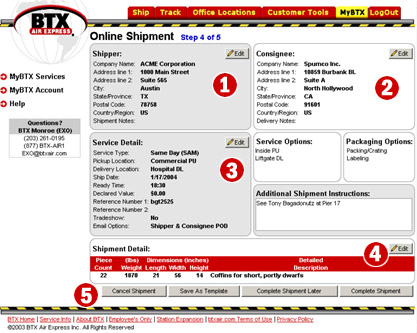
Shipper – Select the Edit button to edit Shipper
Information
-
Consignee –
Select the Edit button to edit Consignee Information -
Service Detail – Select the Edit button to edit Service Detail and all
Service Options Information (Including Additional Shipment Instructions) -
Shipment Detail – Select the Edit button to edit Shipment Detail
Information -
Shipment Submission Options – This array offers the following:
-
Cancel – Cancel the current Shipment
-
Save As Template/Complete Shipment – Completes the current shipment and prompts
you for a unique name to assign the current shipment, which will then be saved
as a Template to use again for similar shipments in the future (see figure
below)
-
Complete Shipment Later – Saves the current shipment as an "Uncompleted
Shipment" which you may recall and finish later at your convenience. This
option is different from a Template in that when you log on to MyBTX, you are
notified how many uncompleted shipments you have
-
Complete Shipment – Completes the current shipment
-
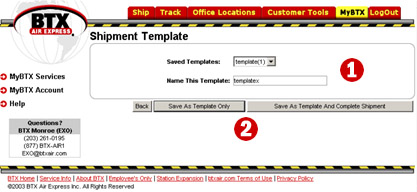
Name the template – you can view existing template names from the
drop-down box
-
Save Options – Save the shipment as a template only, or save it as a
template AND complete the shipment
|
|





